






In this comprehensive GeeTech Group training, you’ll learn how to integrate Siemens PLCs (S7-1200 and S7-1500) with RS PRO HMI using Ethernet communication. This beginner-friendly tutorial simplifies device connectivity in industrial automation projects, guiding you through each stage with practical examples.
Discover how to configure and program a Siemens PLC in TIA Portal, create an HMI interface in piStudio, and establish seamless communication between both systems — all in under 10 minutes!
This detailed guide is proudly presented in collaboration with RS, a global leader in industrial product and service solutions, helping you streamline processes and boost efficiency.
Configuring the Siemens PLC in TIA Portal
To begin, open TIA Portal and start a new project. For this example, we’ve added an S7-1211 PLC; however, you can follow along using any S7-1200 or S7-1500 model available in your setup.
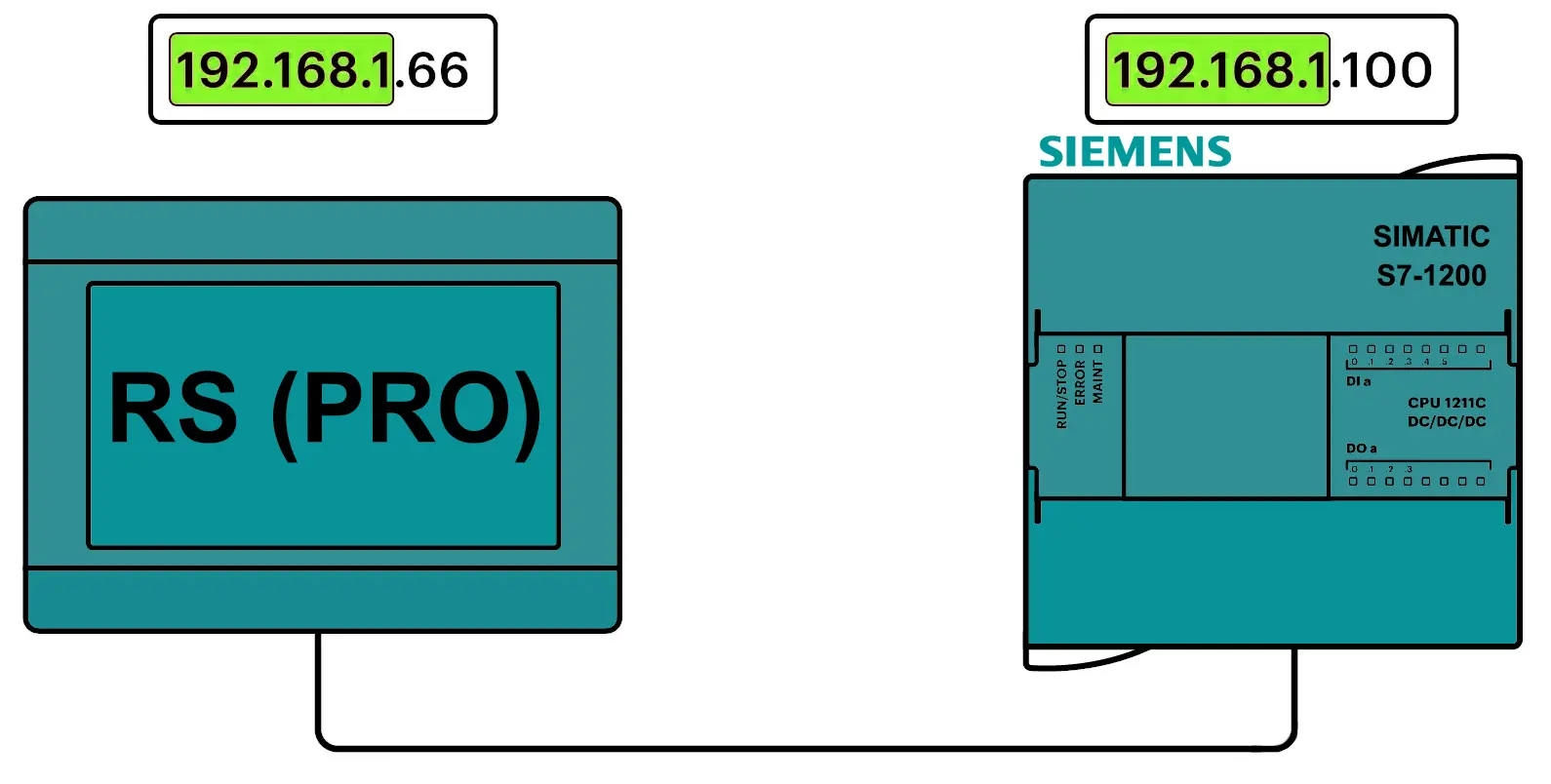
In the Devices & Networks Editor, select your PLC and open its properties. Configure an IP address that matches the same subnet as the RS PRO HMI — this ensures smooth Ethernet communication between both devices.
With the network configuration complete, your Siemens PLC is now ready to connect and communicate with the HMI interface efficiently.
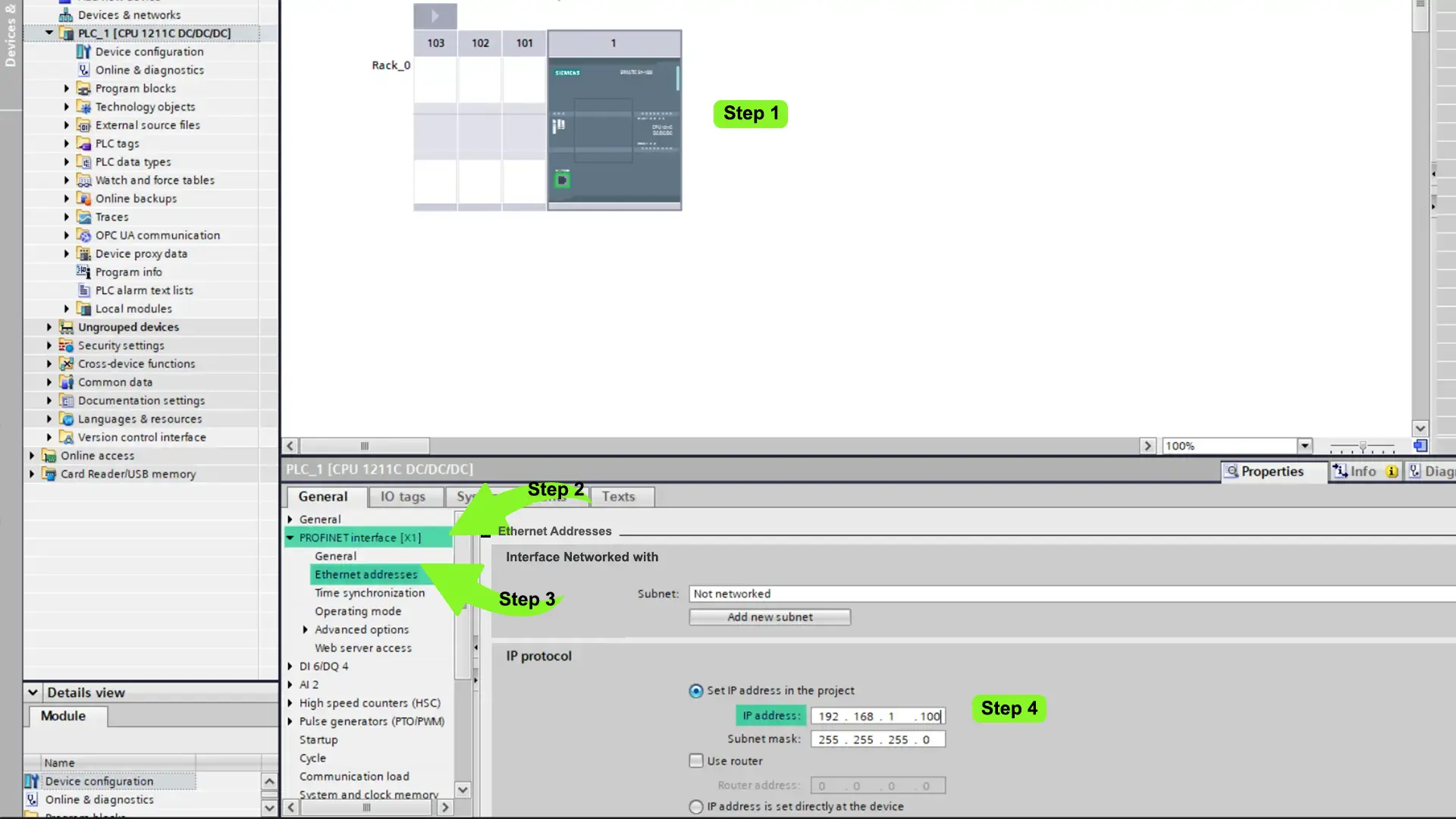
To configure the Siemens PLC’s IP address in TIA Portal, navigate to the PROFINET interface [X1] and open the Ethernet Addresses section. Here, assign the IP address 192.168.1.100 to the PLC.
This setup ensures that your PLC is correctly identified on the Ethernet network, enabling reliable communication with the RS PRO HMI and other connected automation devices.
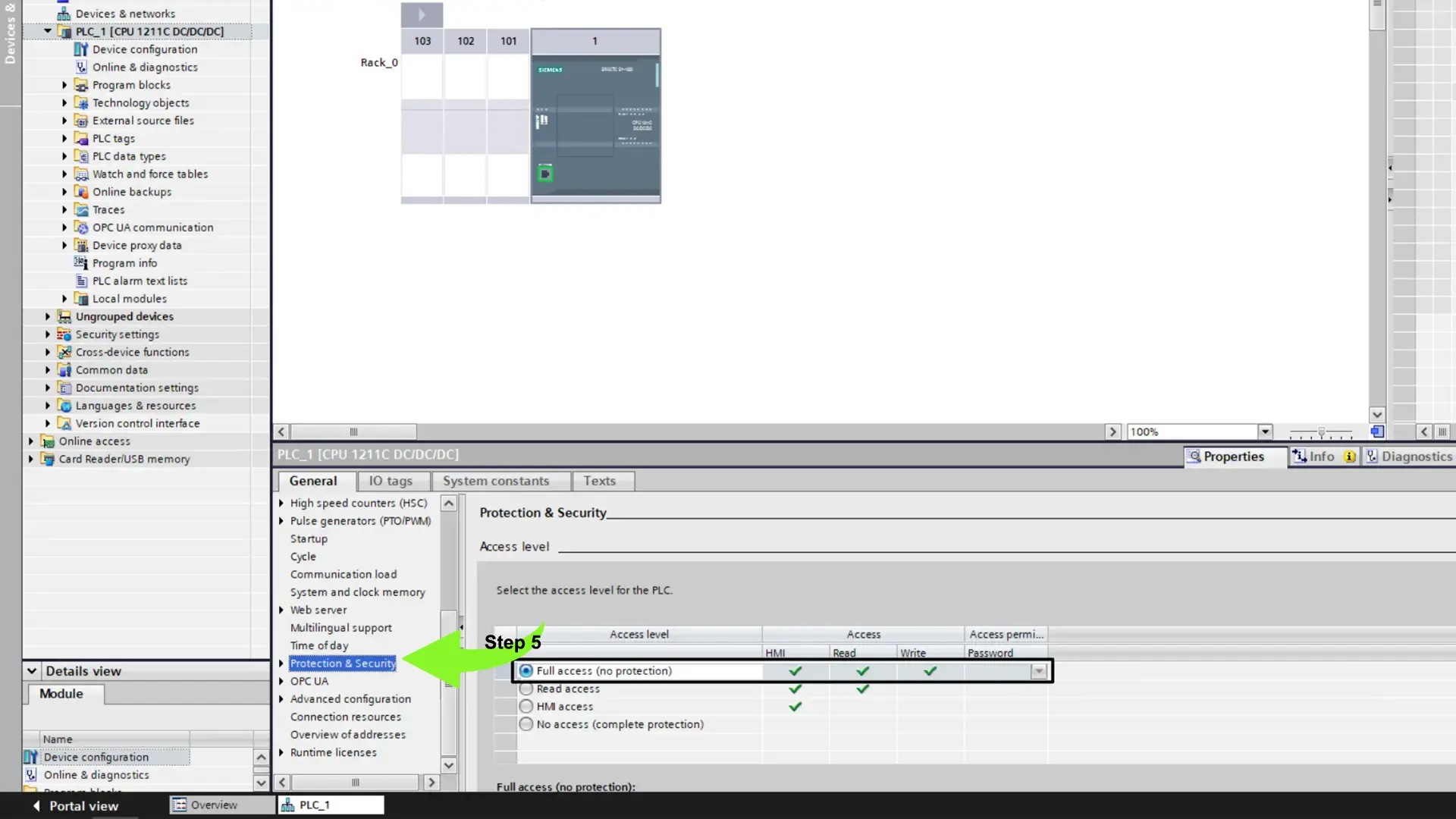
In addition to configuring the PLC’s IP address, it’s essential to enable external device access and activate the communication protocol that allows seamless data exchange between the Siemens PLC and the RS PRO HMI.
To do this, open your PLC’s Properties in TIA Portal and navigate to the Protection and Security section.
Here, set the access level to Full Access, allowing external devices to read and write data within the PLC. This configuration ensures smooth, unrestricted communication between the HMI interface and the PLC system, improving both performance and data synchronization across your automation network.
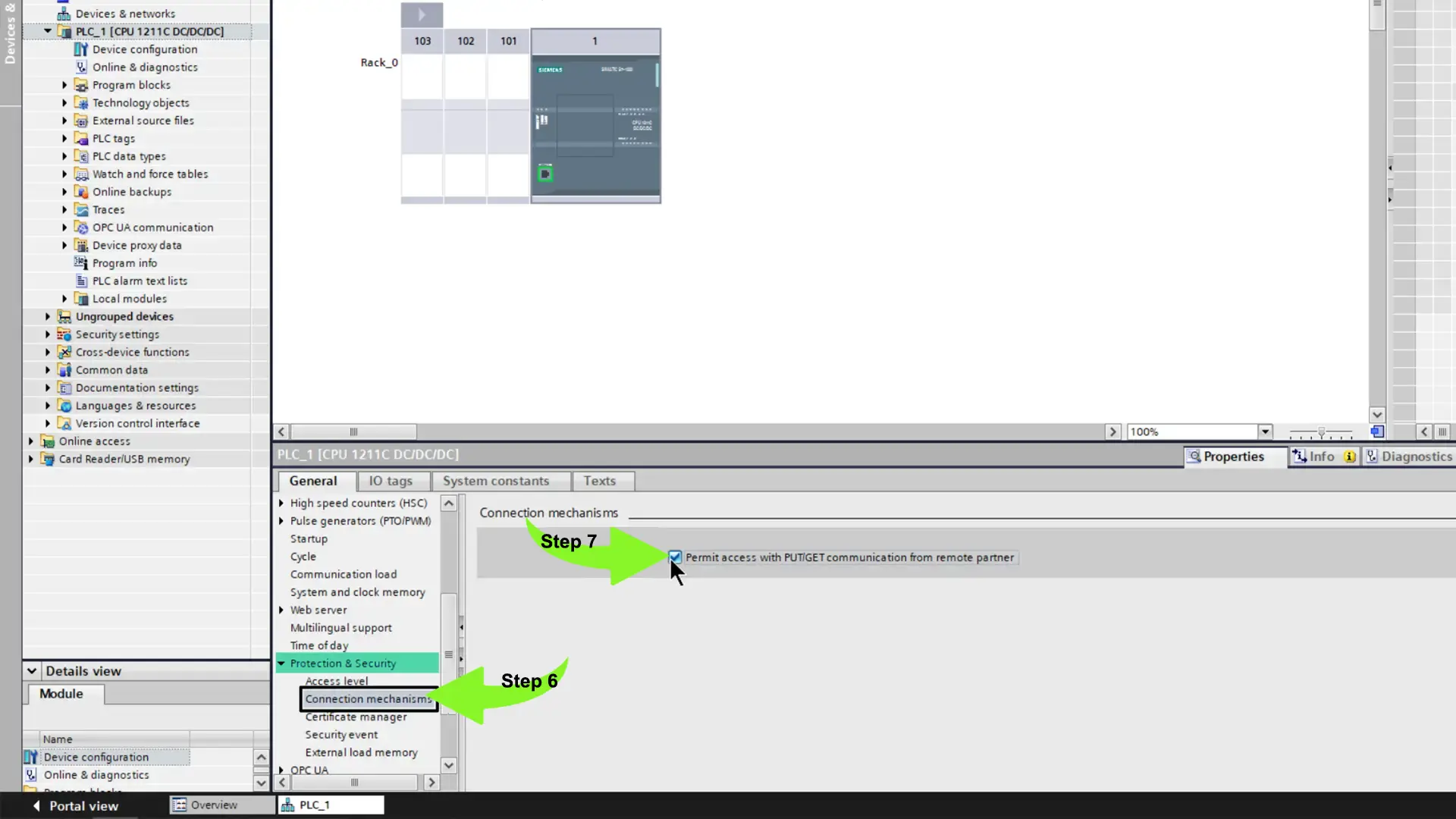
Finally, we need to activate the PUT/GET communication feature in the Siemens PLC. This protocol plays a crucial role in data exchange between the PLC and the RS PRO HMI, ensuring smooth and reliable information transfer.
To enable PUT/GET communication, open the PLC settings in TIA Portal and navigate to the Connection Mechanisms section. Then, check the option “Permit access with PUT/GET communication from remote partner.”
Once enabled, this setting allows the HMI to access PLC data directly, creating a stable and efficient communication link essential for real-time monitoring and control in automation projects.
After completing the PLC configuration, the next step is to create a simple logic program to test future communication between the Siemens PLC and the RS PRO HMI.
Step 1: Creating the Logic Program
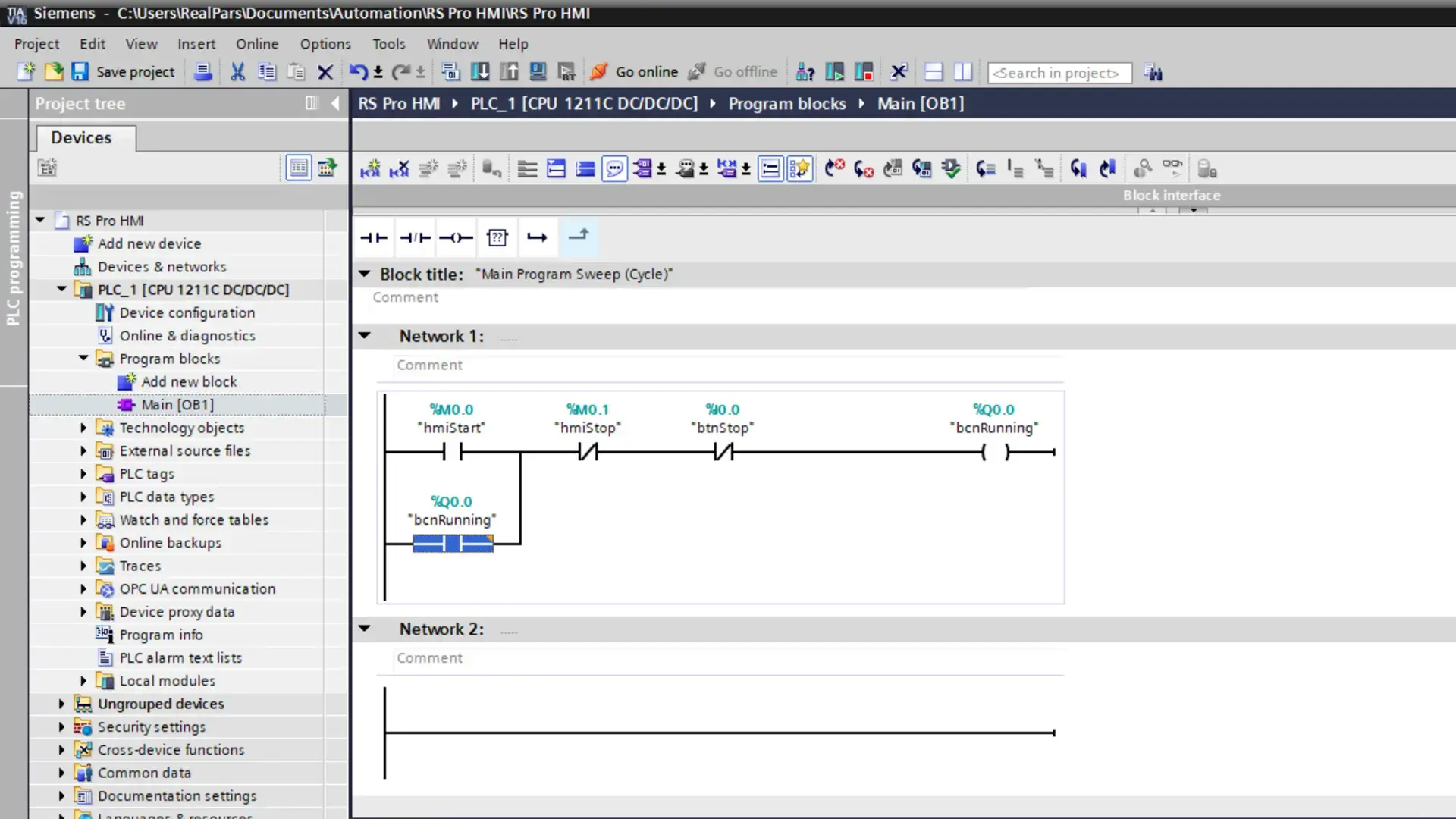
To begin, open the Main OB (Organization Block) by double-clicking it in TIA Portal. In this block, we design a basic seal-in circuit that includes one permissive and two interlock conditions — a standard approach for controlling start/stop functionality in automation systems.
🏷 Step 2: Defining PLC Tags
Once the logic is complete, define the tags that will be used to establish communication with the HMI. In this demonstration, we use three types of tags commonly found in S7 PLCs:
Memory (M)
Global Input (I)
Global Output (Q)
For instance, the HMI can start or stop the process using the tags hmiStart (M0.0) and hmiStop (M0.1).
A physical stop button is also installed and connected to input I0.0, represented by the tag btnStop.
During operation, the PLC activates output Q0.0 to indicate that the process is running — this output corresponds to the tag bcnRunning.
These tags serve as the foundation for effective data exchange between the Siemens PLC and the RS PRO HMI, ensuring accurate control, feedback, and monitoring within your automation setup.
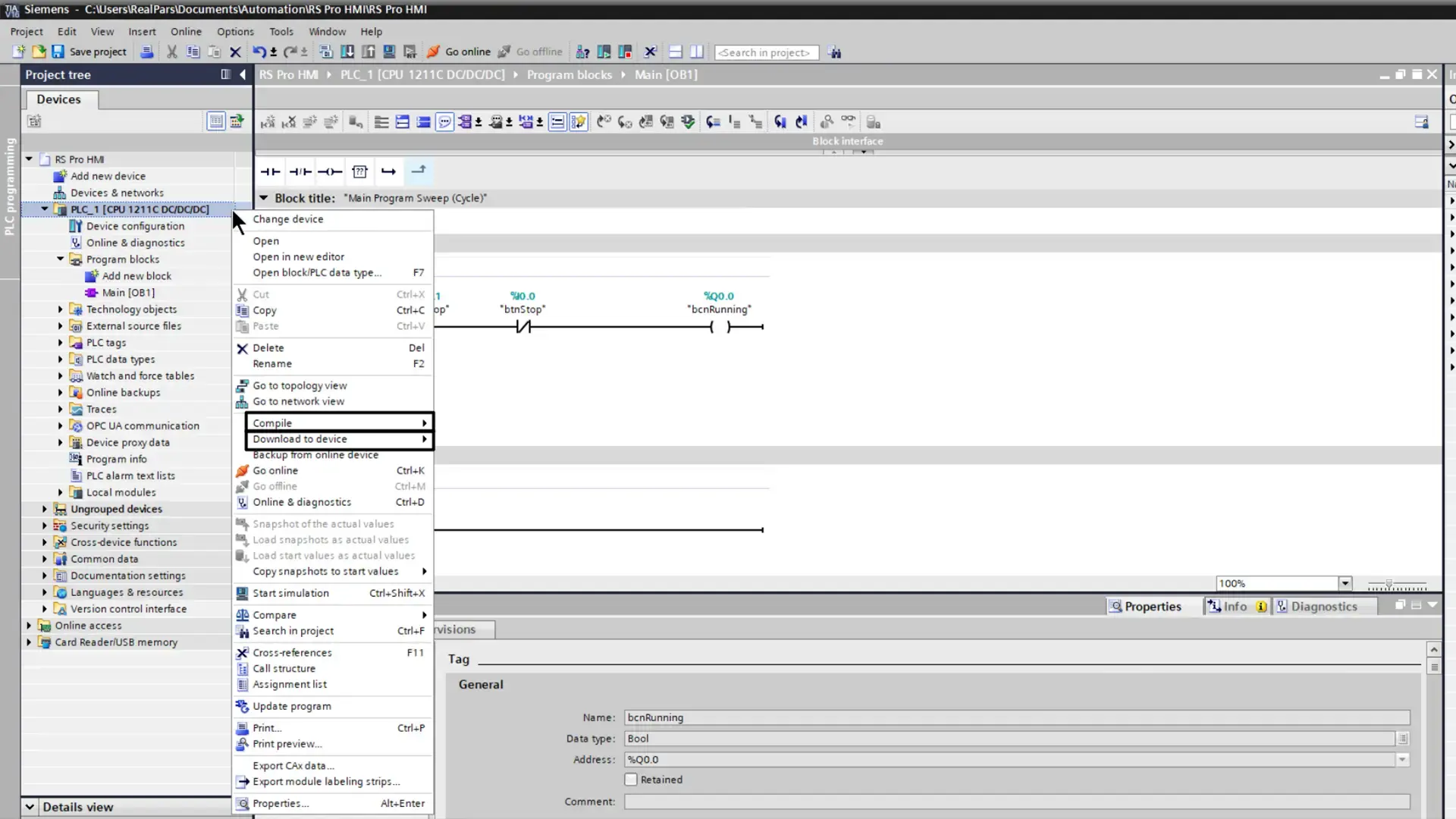
After finalizing the logic configuration, the next step is to compile the project in TIA Portal to verify that there are no programming errors. Once the compilation is successful, download the program to the Siemens PLC.
This process ensures that the configured logic and defined tags are properly transferred to the PLC, allowing it to execute the control sequence and communicate effectively with the RS PRO HMI.
With the PLC programming completed, it’s time to move on to piStudio, the official development environment for RS PRO HMIs.
Creating a New HMI Project
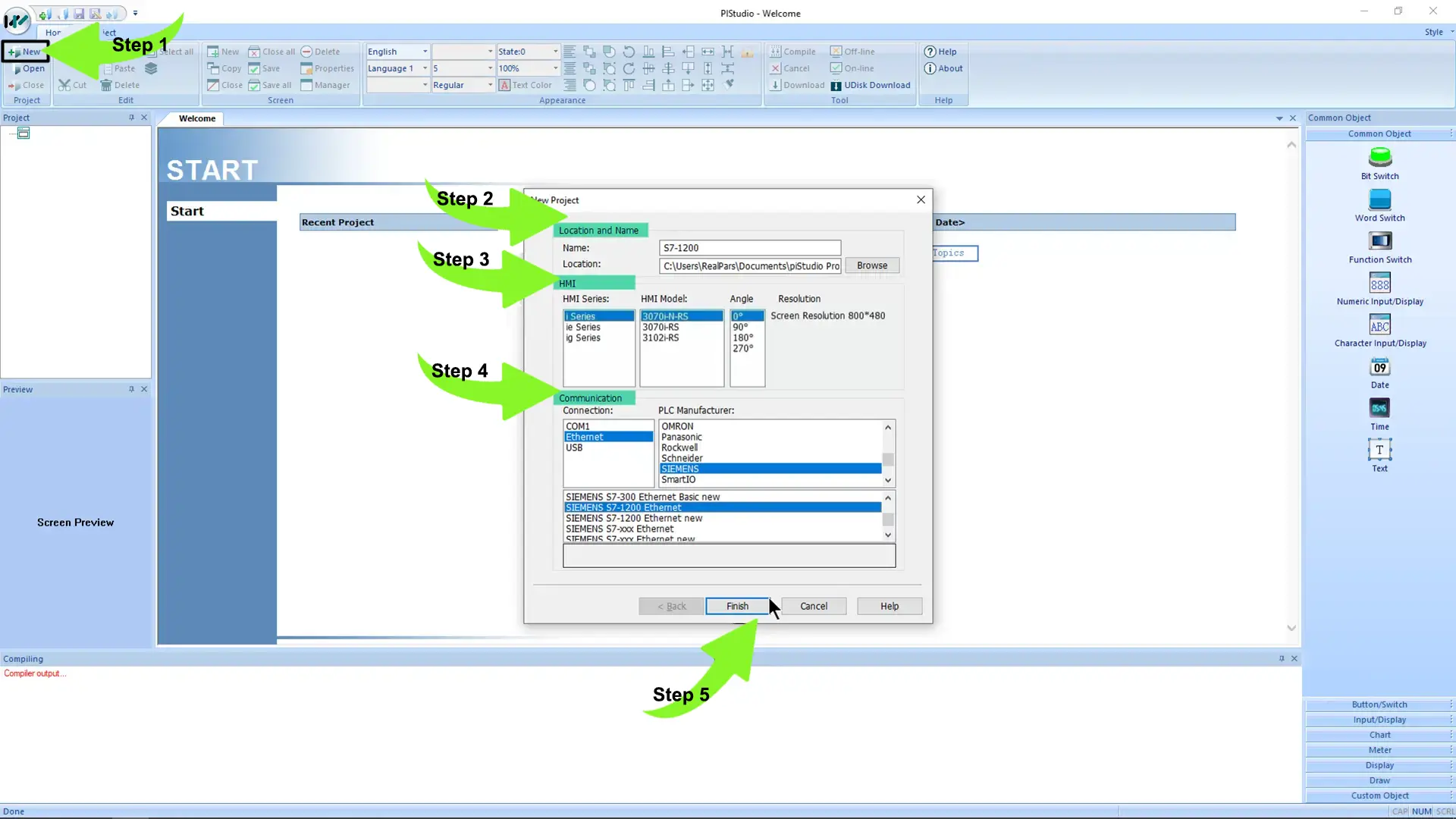
Open piStudio and start a new project. In the project creation dialog, enter a descriptive project name, select your specific RS PRO HMI model, and configure the communication parameters.
For this demonstration, we’ll use an Ethernet connection to interface the RS PRO HMI with a Siemens S7-1200 PLC.
Once all parameters are set, click “Finish” to generate and initialize the new project. This creates the workspace where you’ll design the HMI screens, define tags, and establish communication links with the PLC.
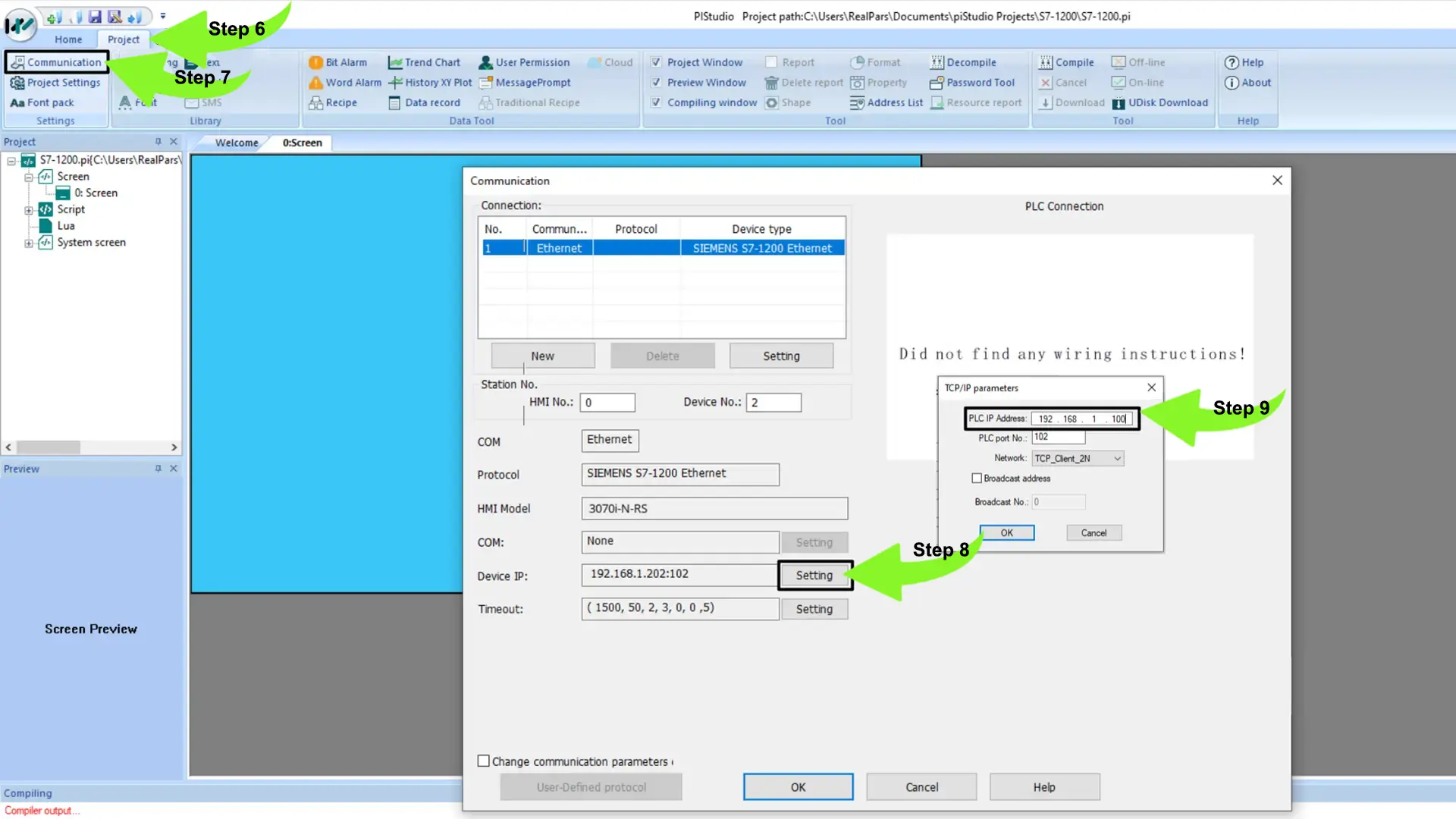
Within the piStudio project, it is essential to define the PLC’s IP address to enable seamless communication between the RS PRO HMI and the Siemens PLC.
Accessing Communication Settings
Navigate to the Project tab in the toolbar and select Communication. In the Communication dialog box, click “Settings” next to the Device IP field.
Here, enter the IP address of the PLC that the HMI will communicate with. Only the IP address needs to be modified; all other settings should remain unchanged.
Saving the Configuration
After entering the IP address, confirm your changes by clicking OK in both dialog boxes. This ensures the HMI and PLC are correctly configured to communicate over the Ethernet network, establishing a stable connection for future data exchange and control operations.
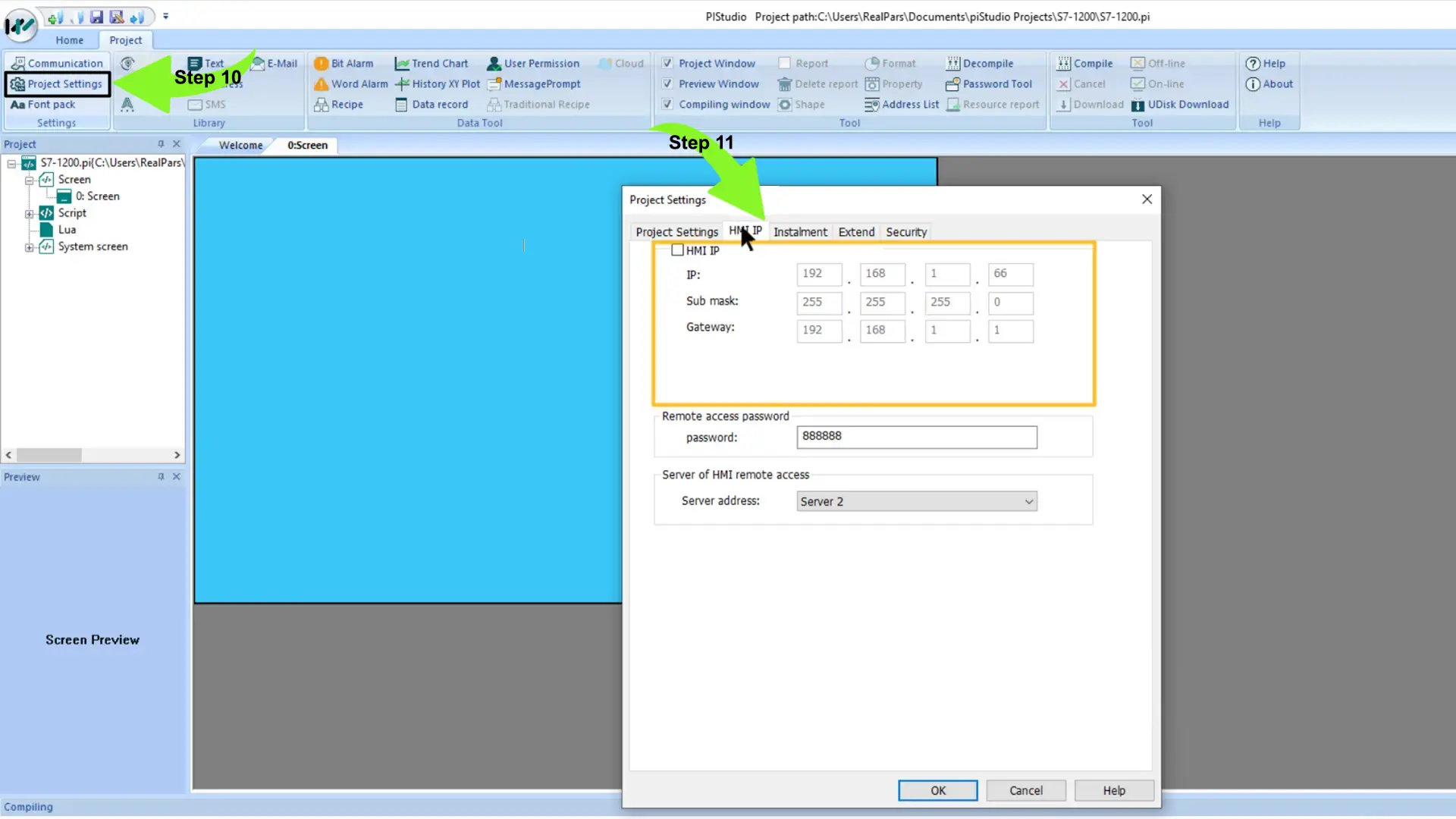
In addition to configuring the PLC’s IP address, it is equally important to assign an IP address to the RS PRO HMI.
Access Project Settings
Open the Project Settings within piStudio.
Enter the HMI IP
Navigate to the HMI IP tab and input the desired IP address for the HMI. This configuration ensures that both the HMI and PLC are on the same network subnet, enabling reliable Ethernet communication for control and monitoring.
Creating the HMI Application in piStudio
With the RS PRO HMI fully configured, we are ready to develop the HMI application that will interact with the Siemens PLC.
Step 1: Build the HMI Application
Start by creating a new HMI application within your piStudio project.
Step 2: Add Objects to the HMI Screen
Use the toolbox to drag and drop objects onto the HMI canvas. These objects will serve as interactive controls for the PLC.
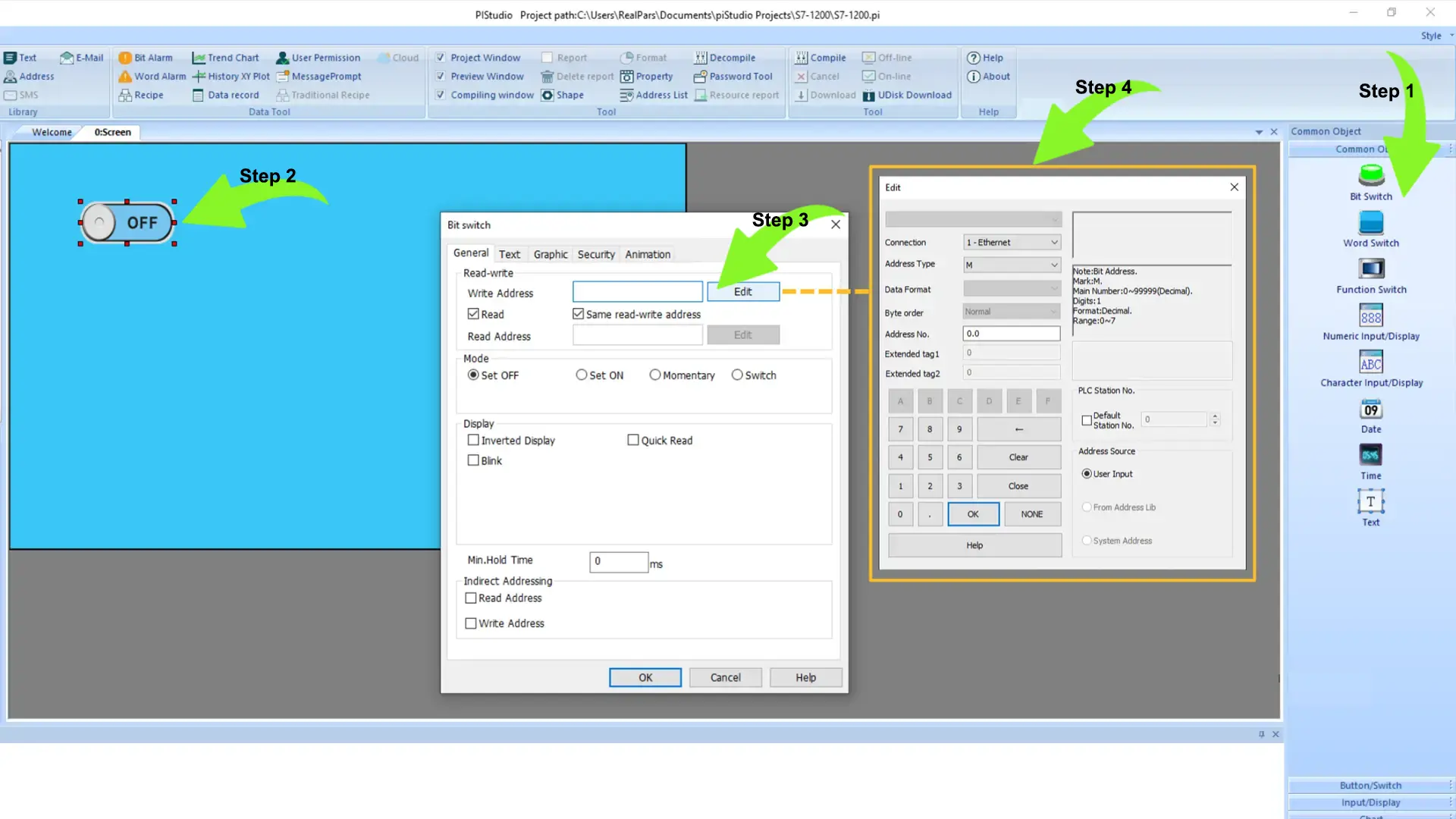
Step 3: Configure a Bit Switch for PLC Interaction
To add a Bit Switch to the canvas:
Place the Bit Switch object on the canvas.
Double-click the object to open its configuration menu.
Set the Bit Switch to write to a PLC tag by clicking Edit next to the Write Address field.
In the dialog box, enter the PLC tag address M0.0, which corresponds to the hmiStart tag.
This configuration allows the HMI to send start commands directly to the Siemens PLC, providing real-time control of your automation process.
Adding a Stop Bit Switch and Configuring Momentary Mode
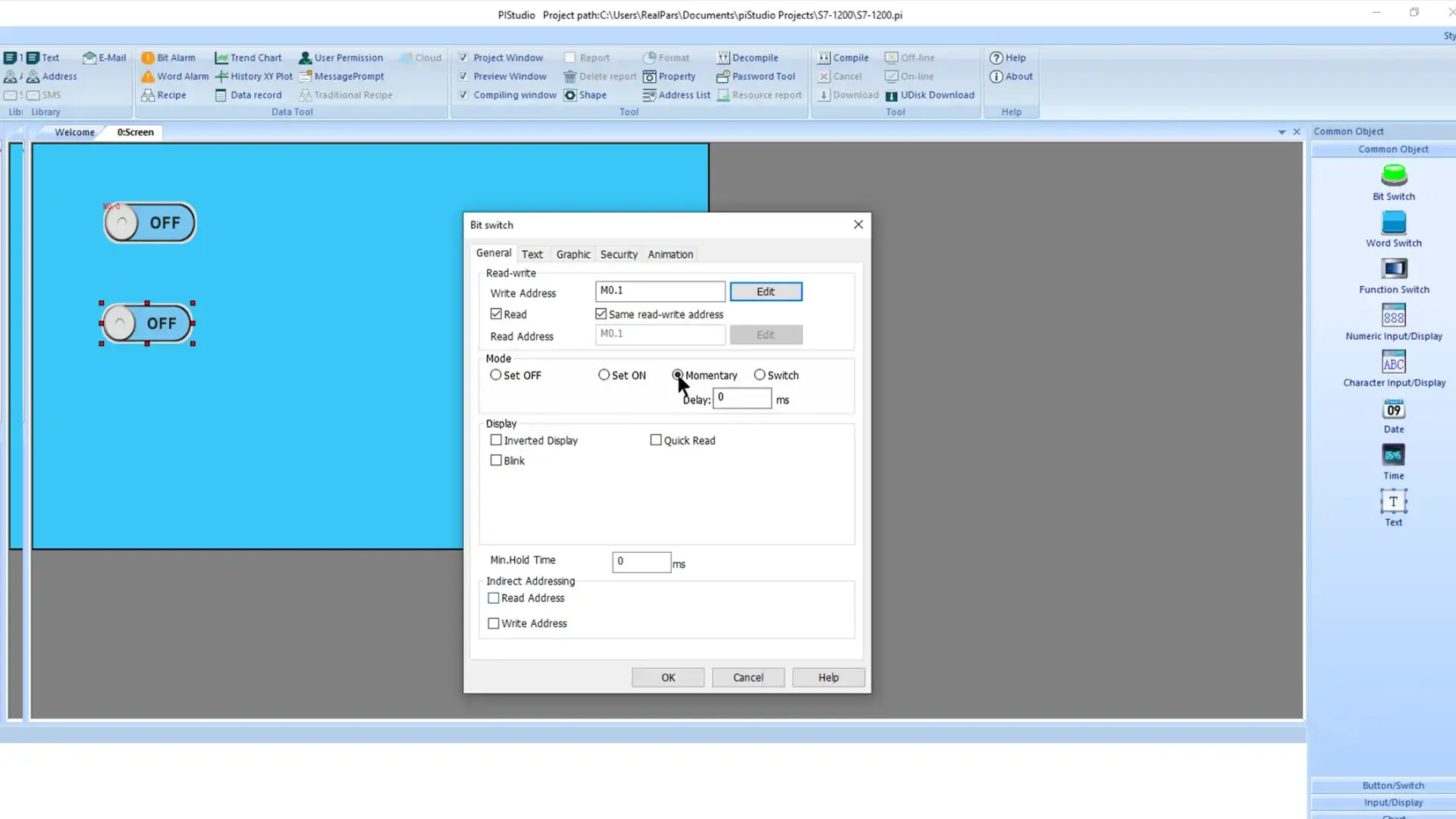
After configuring the start Bit Switch, click OK twice to save the settings. Next, repeat the same process to add a second Bit Switch for the hmiStop tag using the PLC address M0.1.
Set the Bit Switch Mode
For the stop Bit Switch, select Momentary mode. In Momentary mode, the switch writes a True value to its associated PLC tag only while it is pressed, providing immediate control to stop the process.
This setup ensures that the HMI can start and stop the Siemens PLC process in real time, creating a responsive and reliable interface for industrial automation operations.
Displaying PLC Tag Status with Bit Lamps in RS PRO HMI
In addition to writing tag values from the HMI, we can also read and display PLC tag statuses for real-time monitoring.
Add a Bit Lamp for Input Status
From the toolbox, drag a Bit Lamp onto the HMI canvas to visually represent a Boolean tag in the Siemens PLC.
Double-click the Bit Lamp to open its configuration dialog.
Set the tag address to I0.0, which corresponds to the physical stop button input.
Step 2: Add a Bit Lamp for Output Status
Repeat the process to add another Bit Lamp for Q0.0, representing the PLC output that activates during the process. This allows the HMI to provide real-time feedback on the process state.
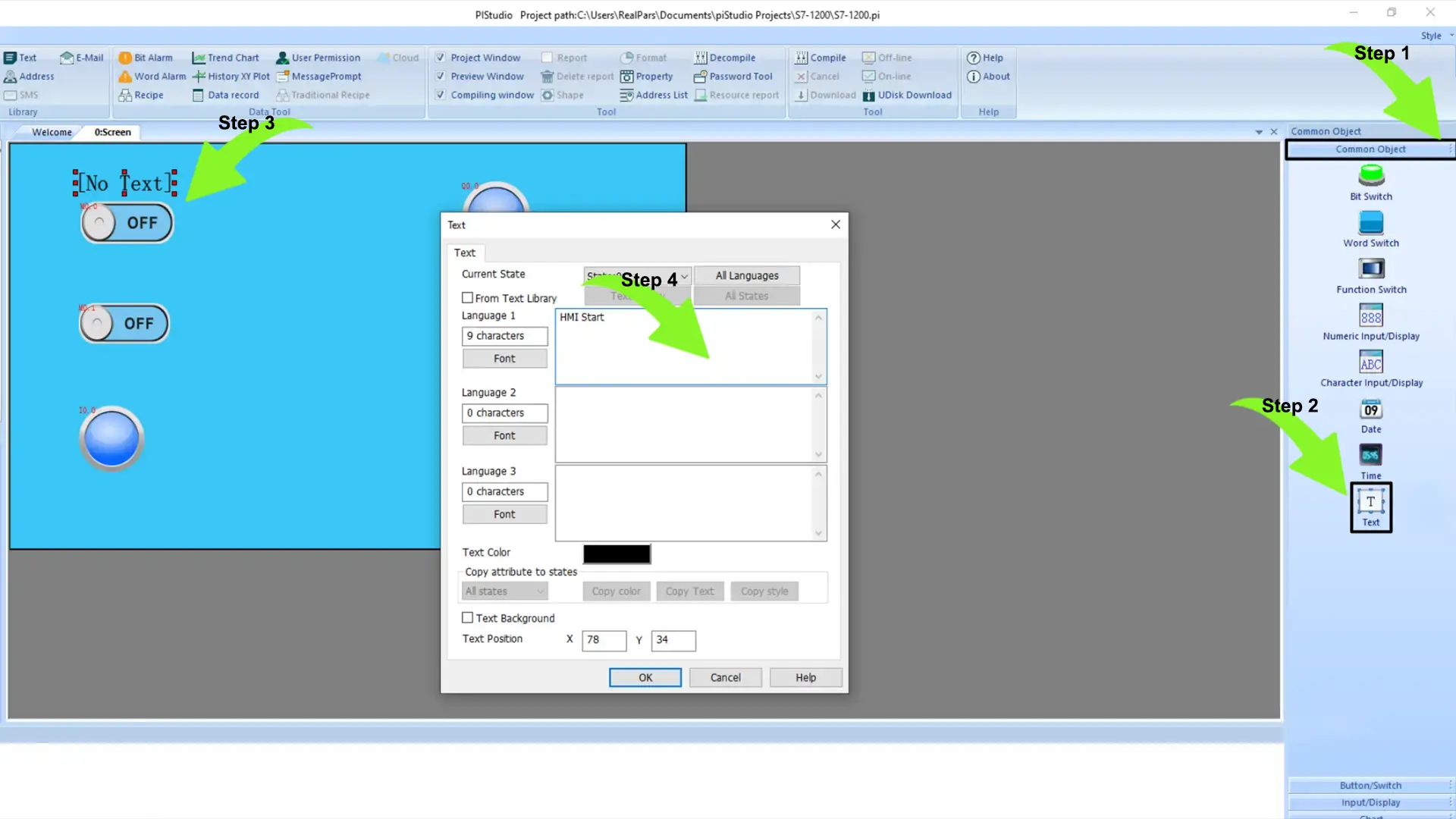
Step 3: Add Descriptive Text Labels
To improve clarity and usability, add text labels for your HMI objects.
Open the Common Object folder in the toolbox.
Drag a Text object above the hmiStart Bit Switch.
Double-click the text object to modify its content, for example, to “HMI Start”.
With these additions, the HMI now displays both input and output statuses clearly and provides intuitive controls for interacting with the Siemens PLC.
Duplicating Text Labels and Aligning HMI Objects
To maintain a clear and consistent interface, duplicate the Text object by copying and pasting it to provide labels for all remaining HMI objects on the canvas.
For precise placement, use the alignment and positioning tools available on the toolbar. These tools help to accurately arrange and align objects, creating a professional and user-friendly HMI layout that enhances readability and operation efficiency.
This approach ensures that your RS PRO HMI interface is not only functional but also visually organized, making it easier for operators to interact with the Siemens PLC effectively.
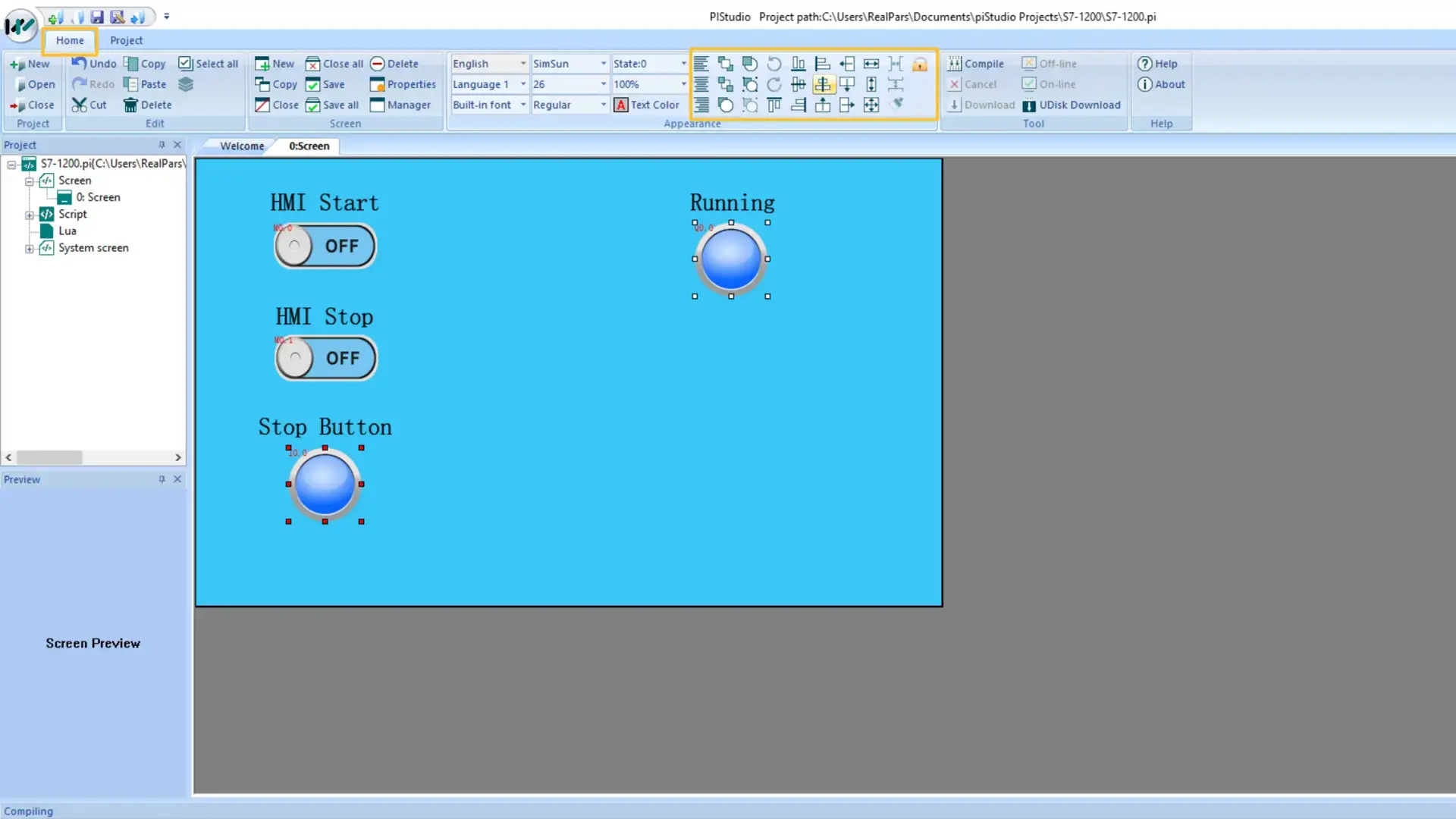
Once the RS PRO HMI development is complete, the next step is to compile the HMI application. Click the Compile button on the toolbar to ensure there are no errors in your project.
After a successful compilation, download the application to the HMI device. This step transfers all screens, tags, and configurations to the HMI, enabling it to communicate seamlessly with the Siemens PLC and provide real-time control and monitoring for your automation process.
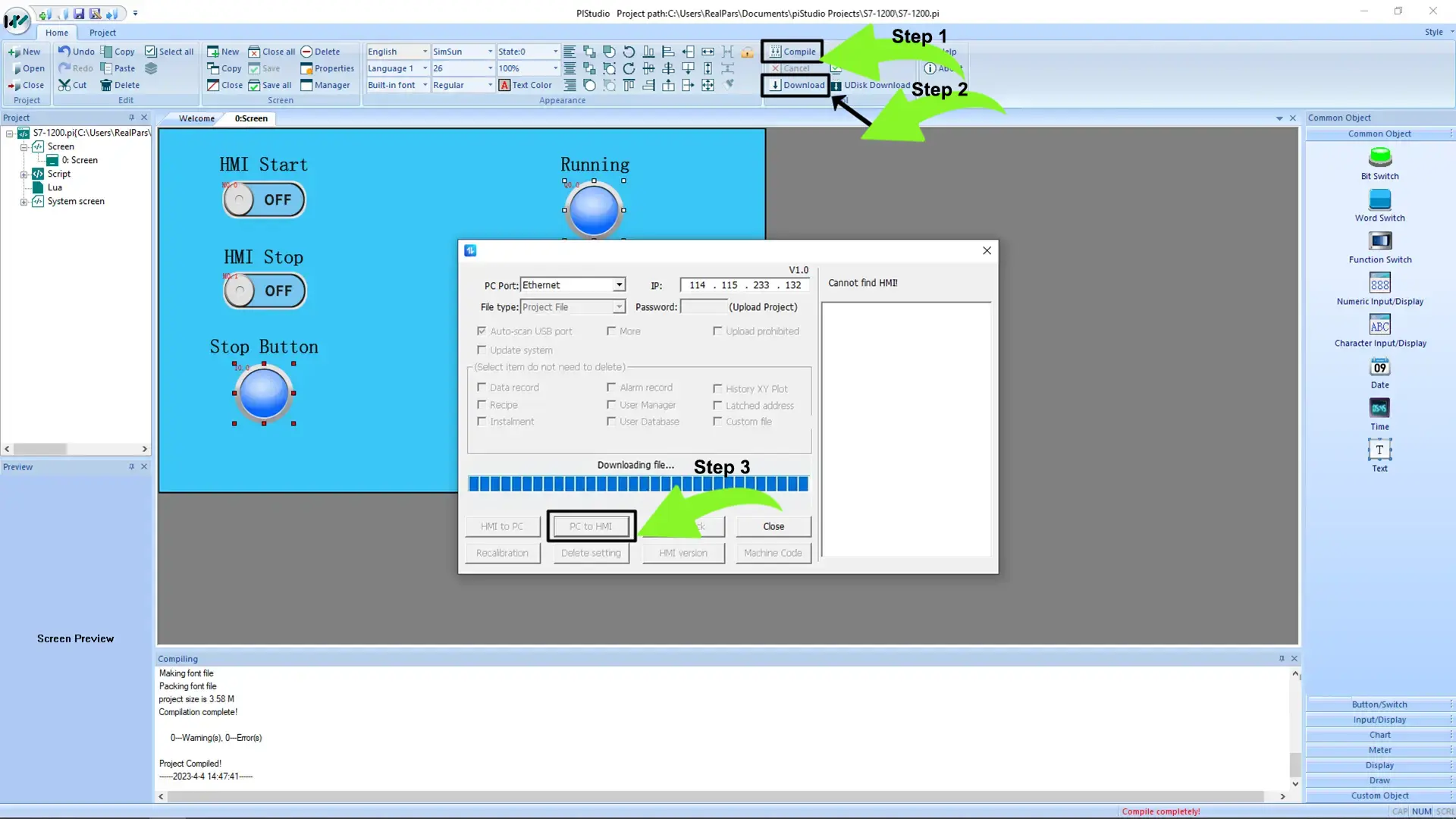
Testing HMI-to-PLC Communication
After downloading the HMI application, it’s crucial to test the communication between the RS PRO HMI and the Siemens PLC to ensure everything functions as expected.
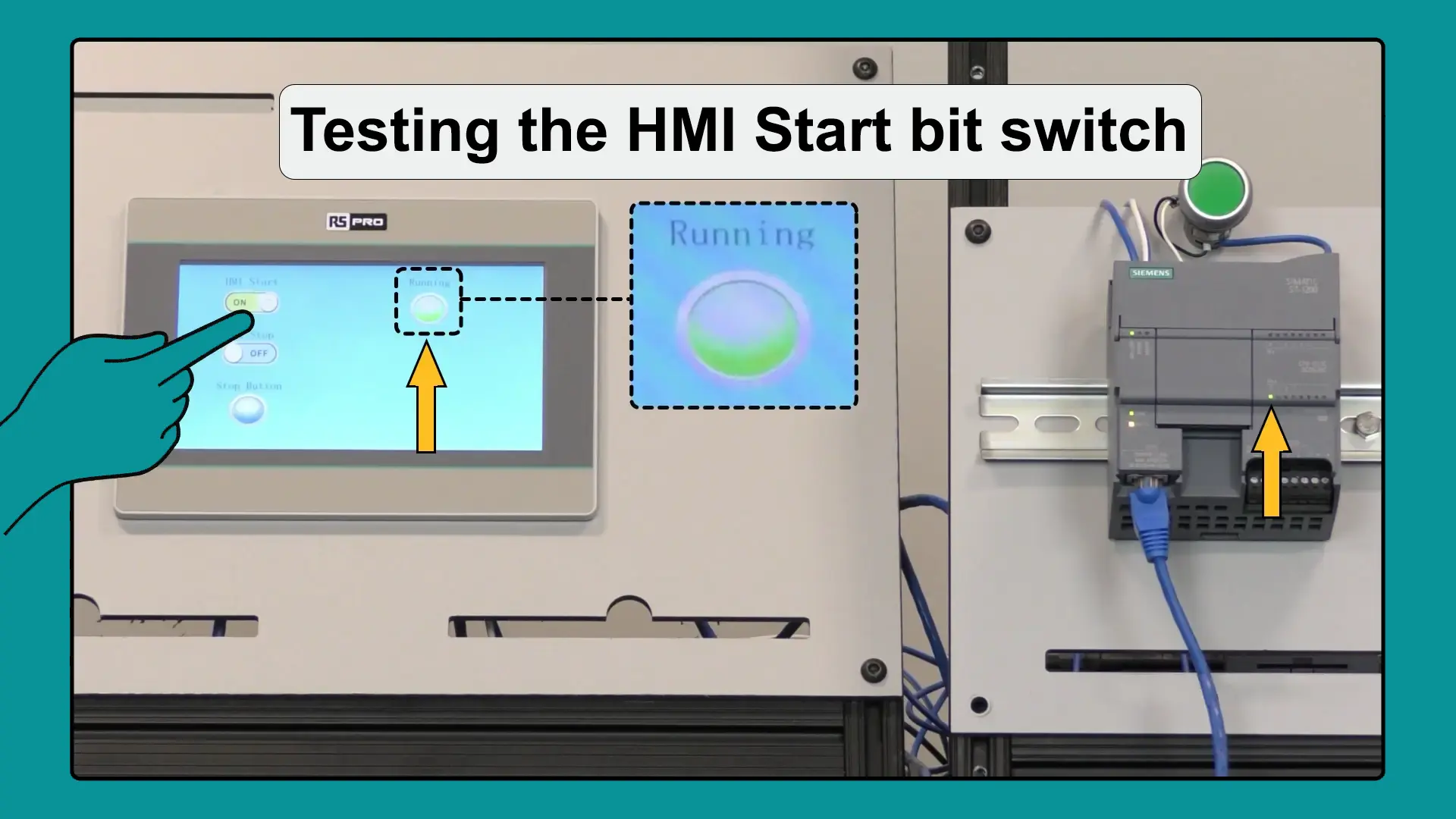
Step 1: Activate the HMI Start Bit Switch
On the HMI interface, activate the Start Bit Switch. When pressed, it writes the value ‘True’ to the hmiStart tag in the Siemens PLC.
Step 2: Verify PLC Output Status
Check the bcnRunning output in the PLC. The output should switch to ‘True’, indicating that the PLC has received the start command.
Step 3: Confirm via Bit Lamp Feedback
The Running Bit Lamp on the HMI will visually reflect the tag status. When bcnRunning is True, the Bit Lamp lights up, confirming successful HMI-to-PLC communication and proper operation of your automation process.
Testing Physical Input Feedback on the HMI
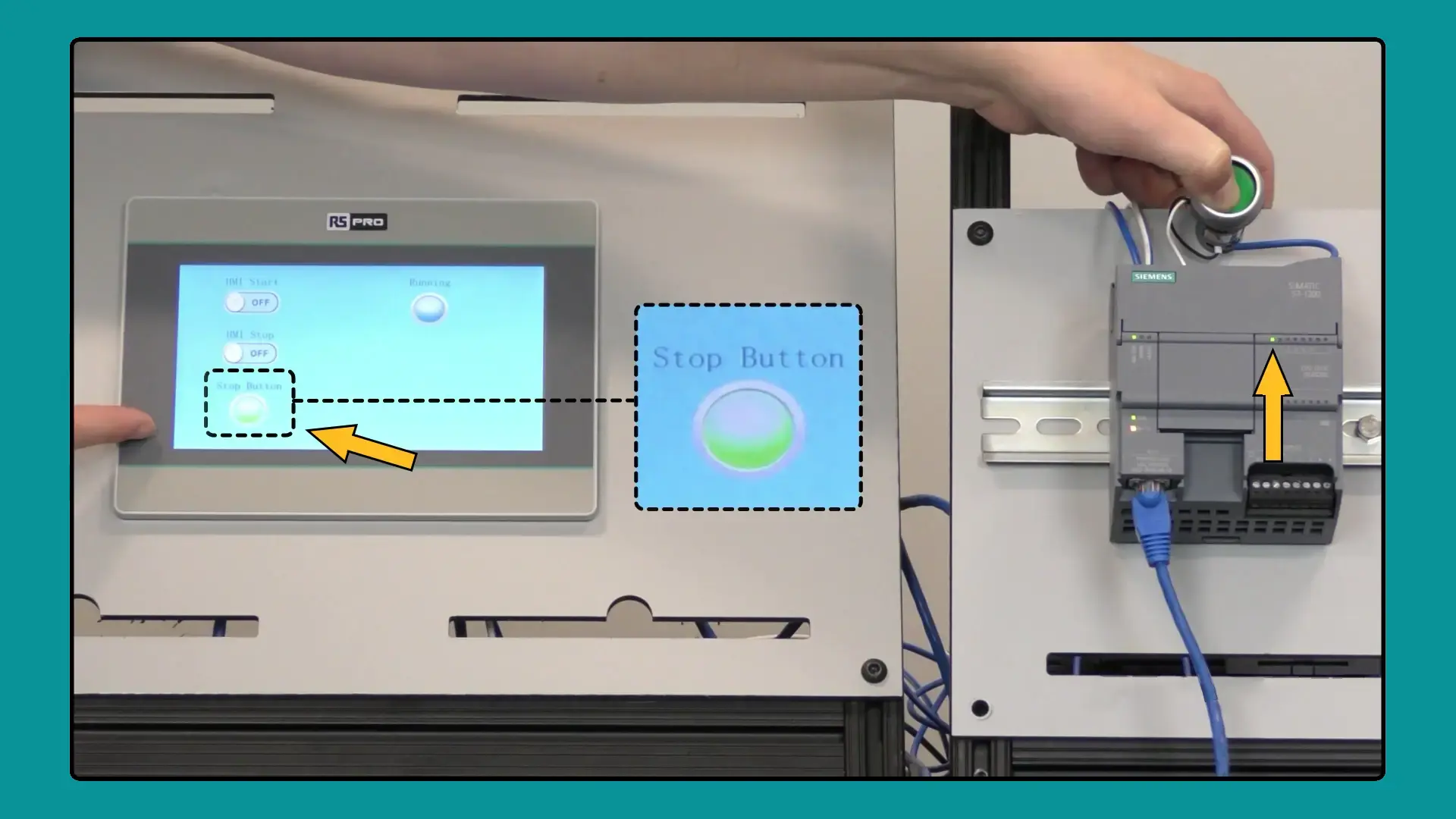
Finally, we can manipulate the physical input I0.0 on the Siemens PLC to verify real-time feedback on the HMI.
When the physical input state changes, the Stop Button Bit Lamp on the RS PRO HMI interface updates accordingly. This visual feedback confirms that the HMI accurately reflects the PLC’s input status, ensuring reliable monitoring and control within your automation system.
Conclusion: Seamless Siemens PLC and RS PRO HMI Integration
At this stage, we can confidently confirm that communication between the Siemens S7-1200 PLC and the RS PRO HMI is functioning smoothly and reliably.
In this tutorial, we walked through the complete process of integrating a Siemens PLC with an RS PRO HMI using TIA Portal and piStudio. Key steps covered include:
PLC Configuration: Setting the IP address, configuring access levels, and enabling PUT/GET communication for smooth data exchange.
HMI Setup: Defining the HMI IP address, mapping HMI objects such as Bit Switches and Bit Lamps to corresponding PLC tags, and creating interactive screens for real-time control.
Testing and Verification: Activating HMI controls to send commands to the PLC, observing tag status updates on Bit Lamps, and verifying physical input feedback to ensure reliable HMI-to-PLC communication.
By following these steps, you now have a fully functional HMI-PLC interface that allows for real-time monitoring, control, and feedback — a foundation for building more advanced industrial automation systems.
Contact Us:
- Address: Mücahitler Mahallesi 52043 No’lu Sokak No: 3A-3B, Şehitkamil / GAZİANTEP
- Website: [www.GeeTech.com.tr]
- Twitter: [@GeeTechGroup]
- Instagram: [@GeeTechGroup]
- LinkedIn: [GeeTech Group]
- YouTube: [GeeTech Group Channel]
- WhatsApp: [Contact Us]